
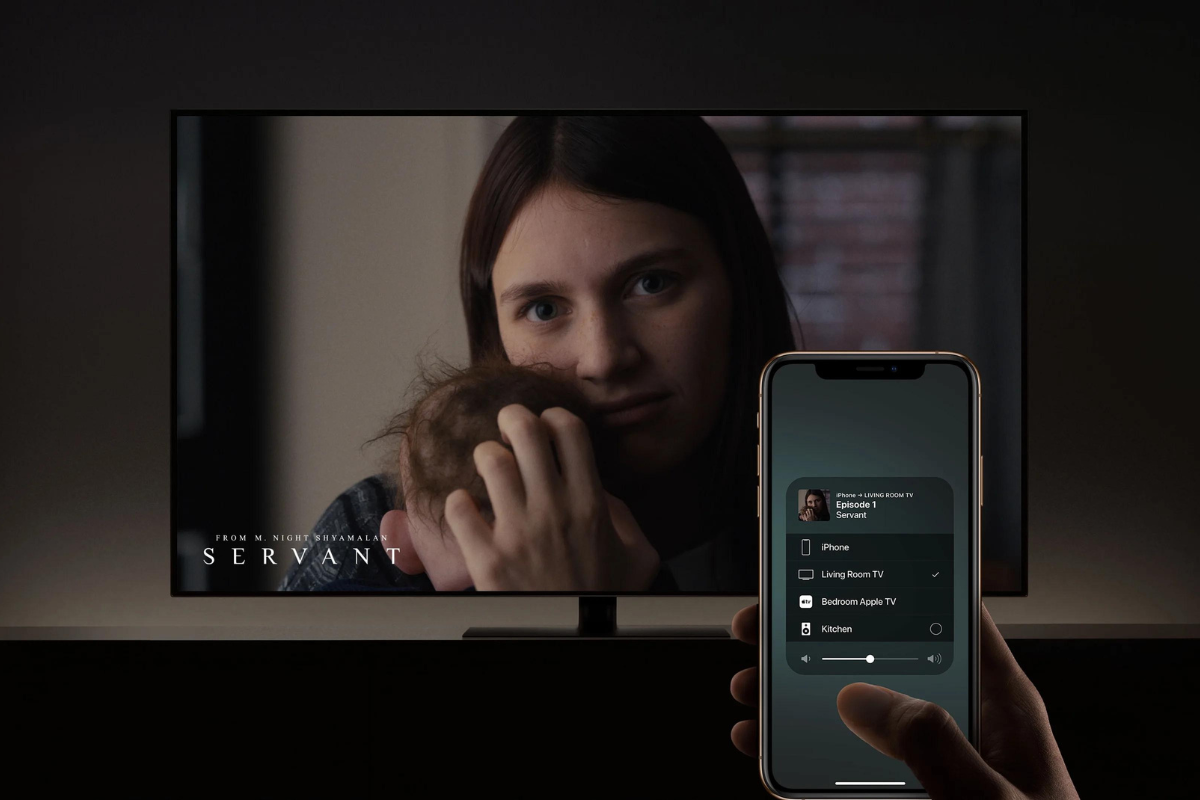
How to Connect iPhone to LG TV
Connecting your iPhone to your LG TV opens up a world of possibilities. You can stream your favourite shows and movies, play mobile games on the big screen, and even give presentations, but how to connect iPhone to LG TV?
The good news is that there are several ways to do it. You can use the built-in AirPlay feature on your iPhone, connect via a third-party app, or use a streaming device like Roku. You can even connect your iPhone to your LG TV using a USB cable or an HDMI cable, depending on what you have available.
In this article, we’ll walk you through the different methods of connecting your iPhone to your LG TV. We’ll cover everything from setting up your Wi-Fi network to using AirPlay mirroring. Whether you’re looking to binge-watch your favourite Netflix series or give a presentation at work, we’ve got you covered. So let’s get started!
How to Connect iPhone to LG TV
Connecting your iPhone to your LG TV is a straightforward process that can be done in several ways. In this section, we will discuss some of the most popular methods.
Method 1: Connect iPhone to LG TV via HDMI Cable
One of the easiest ways to connect your iPhone to your LG TV is by using an HDMI cable. Here’s how to do it:
- Plug one end of the HDMI cable into your LG TV’s HDMI port.
- Plug the other end of the HDMI cable into the Lightning Digital AV Adapter.
- Connect the Lightning Digital AV Adapter to your iPhone’s Lightning port.
- Turn on your LG TV and switch to the HDMI input that your iPhone is connected to.
- Your iPhone’s screen should now be mirrored on your LG TV.
Method 2: Connect iPhone to LG TV Wirelessly
If you don’t want to deal with cables, you can also connect your iPhone to your LG TV wirelessly. Here are the steps:
- Make sure your iPhone and LG TV are connected to the same Wi-Fi network.
- On your iPhone, swipe down from the top-right corner of the screen to open Control Centre.
- Tap on Screen Mirroring.
- Select your LG TV from the list of available devices.
- Your iPhone’s screen should now be mirrored on your LG TV.
Method 3: Connect iPhone to LG TV via Third-Party App
If your LG TV doesn’t support AirPlay, you can still connect your iPhone to your TV using a third-party app. Here’s how:
- Download and install a third-party app like TV Assist on your iPhone.
- Open the app and follow the on-screen instructions to connect your iPhone to your LG TV.
- Your iPhone’s screen should now be mirrored on your LG TV.
In conclusion, there are several ways to connect your iPhone to your LG TV. Whether you prefer using cables or going wireless, you can easily mirror your iPhone’s screen on your LG TV and enjoy your favourite content on a larger screen.
Connecting iPhone to LG TV via Cable
If you want to connect your iPhone to an LG TV, you have a few options. One of the easiest and most reliable ways is to use a cable. In this section, we’ll show you how to connect your iPhone to your LG TV using an HDMI cable or a VGA adapter.
Using HDMI Cable
To connect your iPhone to your LG TV using an HDMI cable, you’ll need an HDMI cable and a Lightning Digital AV Adapter. Here’s how to do it:
- Plug one end of the HDMI cable into the HDMI port on your LG TV.
- Plug the other end of the HDMI cable into the Lightning Digital AV Adapter.
- Plug the Lightning Digital AV Adapter into your iPhone’s charging port.
- Turn on your LG TV and switch to the HDMI input.
- Your iPhone’s screen should now appear on your LG TV.
Using an HDMI cable is a great way to get high-quality picture and sound. However, keep in mind that not all LG TVs have an HDMI port. If your LG TV doesn’t have an HDMI port, you can use a VGA adapter instead.
Using VGA Adapter
To connect your iPhone to your LG TV using a VGA adapter, you’ll need a VGA adapter and a Lightning to VGA Adapter. Here’s how to do it:
- Plug one end of the VGA cable into the VGA port on your LG TV.
- Plug the other end of the VGA cable into the Lightning to VGA Adapter.
- Plug the Lightning to VGA Adapter into your iPhone’s charging port.
- Turn on your LG TV and switch to the VGA input.
- Your iPhone’s screen should now appear on your LG TV.
Using a VGA adapter can be a good option if your LG TV doesn’t have an HDMI port. However, keep in mind that VGA doesn’t support high-definition video, so the picture quality may not be as good as with HDMI.
Overall, using a cable to connect your iPhone to your LG TV is a simple and reliable way to get your iPhone’s screen on your TV screen. Whether you use an HDMI cable or a VGA adapter, you’ll be able to enjoy your iPhone’s content on a bigger screen.
Connecting iPhone to LG TV Wirelessly
If you own an LG Smart TV and an iPhone, you may be wondering how to connect your iPhone to your LG TV wirelessly. Fortunately, there are a few ways to do this, including using AirPlay or third-party apps.
Using AirPlay
If you have an LG Smart TV that is AirPlay 2-compatible, you can easily connect your iPhone to your TV using AirPlay. Here’s how:
- Make sure your iPhone and LG Smart TV are connected to the same Wi-Fi network.
- On your iPhone, swipe down from the top-right corner of the screen to access Control Centre.
- Tap Screen Mirroring.
- Select your LG Smart TV from the list of available devices.
- Enter the AirPlay code that appears on your TV screen (if prompted).
Once connected, you can stream content from your iPhone to your LG Smart TV, including videos, photos, and music.
Using Third-Party Apps
If your LG Smart TV is not AirPlay 2-compatible, you can still connect your iPhone to your TV using a third-party app. One popular app is TV Assist, which is available for free on the App Store. Here’s how to use it:
- Download and install TV Assist on your iPhone.
- Make sure your iPhone and LG Smart TV are connected to the same Wi-Fi network.
- Open TV Assist on your iPhone.
- Follow the on-screen instructions to connect your iPhone to your LG Smart TV.
Once connected, you can use TV Assist to stream content from your iPhone to your LG Smart TV, including videos, photos, and music.
It’s important to note that some streaming services, such as Netflix and Amazon Prime Video, use DRM (digital rights management) to protect their content. This means that you may not be able to stream certain content from your iPhone to your LG Smart TV using AirPlay or third-party apps.
In summary, connecting your iPhone to your LG Smart TV wirelessly is easy with AirPlay or third-party apps like TV Assist. Just make sure your devices are connected to the same Wi-Fi network, and you’ll be streaming content in no time.
Connecting iPhone to LG TV via Apple TV
If you have an Apple TV, you can easily connect your iPhone to your LG TV. This method works by streaming content from your iPhone to the Apple TV, which then displays it on your LG TV. Here are two ways to connect your iPhone to your LG TV via Apple TV.
Using AirPlay Feature
One way to connect your iPhone to your LG TV via Apple TV is by using the AirPlay feature. This feature allows you to wirelessly stream content from your iPhone to your LG TV. Here are the steps to follow:
- Make sure your iPhone and Apple TV are connected to the same home Wi-Fi network.
- On your iPhone, open the Control Center by swiping down from the top-right corner of the screen.
- Tap the Screen Mirroring button.
- Select your Apple TV from the list of available devices.
- Enter the AirPlay passcode if prompted.
- Your iPhone screen should now be mirrored on your LG TV.
Using Wired Connection
Another way to connect your iPhone to your LG TV via Apple TV is by using a wired connection. This method involves connecting your iPhone to your Apple TV using a USB cable. Here are the steps to follow:
- Connect your iPhone to your Apple TV using a USB cable.
- On your Apple TV, go to Settings > AirPlay > AirPlay and HomeKit.
- Turn on AirPlay and HomeKit.
- On your iPhone, open the Control Center by swiping down from the top-right corner of the screen.
- Tap the Screen Mirroring button.
- Select your Apple TV from the list of available devices.
- Enter the AirPlay passcode if prompted.
- Your iPhone screen should now be mirrored on your LG TV.
By following these steps, you can easily connect your iPhone to your LG TV via Apple TV. Whether you choose to use the AirPlay feature or a wired connection, you can enjoy streaming your favourite content from your iPhone to your LG TV with ease.
Troubleshooting
If you’re experiencing issues connecting your iPhone to your LG TV, don’t worry. It’s a common problem that can be easily fixed with a few troubleshooting steps. In this section, we’ll cover some common issues and their solutions.
Connection Issues
If you’re having trouble connecting your iPhone to your LG TV, make sure that both devices are connected to the same Wi-Fi network. If you’re still having trouble, try the following steps:
- Check that your Wi-Fi network is working properly.
- Restart your iPhone and LG TV.
- Make sure that AirPlay is enabled on your LG TV.
- Check that your iPhone is running the latest version of iOS.
Sound and Picture Issues
If you’re having trouble with the sound or picture on your LG TV, try the following steps:
- Make sure that your iPhone is not on silent mode.
- Check that the volume on your LG TV is turned up.
- Make sure that your LG TV is set to the correct input source.
- Check that your HDMI cable is securely connected to both your iPhone and LG TV.
- Try adjusting the picture settings on your LG TV.
If you’re still having trouble, try resetting your LG TV to its factory settings. This will erase all data and settings on your TV, so make sure to back up any important data before resetting.
Conclusion
By following these troubleshooting steps, you should be able to connect your iPhone to your LG TV without any issues. If you’re still having trouble, don’t hesitate to ask for help or consult the manufacturer’s instructions.
Key Takeaways
Connecting your iPhone to an LG TV can be a great way to enjoy your content on a larger screen. Here are some key takeaways to keep in mind when connecting your iPhone to an LG TV:
- There are several ways to connect your iPhone to an LG TV, including using an HDMI cable, a USB cable, or Wi-Fi.
- If you have an LG smart TV, you can use its built-in webOS platform to connect your iPhone wirelessly via AirPlay or Bluetooth.
- To connect your iPhone to an LG TV using an HDMI cable, you will need an HDMI adapter that is compatible with your iPhone model.
- If you don’t have an HDMI adapter, you can also connect your iPhone to an LG TV using a USB cable and the TV’s USB port.
- When using Wi-Fi to connect your iPhone to an LG TV, make sure both devices are on the same Wi-Fi network.
- Once connected, you can use your iPhone to stream content to your LG TV, including movies, TV shows, and music.
- Some LG TVs also support screen mirroring, which allows you to display your iPhone’s screen on your TV.
Overall, connecting your iPhone to an LG TV is a straightforward process that can greatly enhance your viewing experience. Just make sure to choose the method that works best for your needs and follow the instructions carefully to ensure a successful connection.


