
How To Turn Google Assistant Off
If Google Assistant sometimes appears unexpectedly on your screen, you might wonder how to turn Google Assistant Off. Google Assistant combines artificial intelligence with smart home devices to make our lives much more manageable.
Many people in the UK rely heavily on Google Assistant in their day-to-day lives. However, it has a strange habit of appearing without warning, so you might want to turn it off. But how to do that?
First, go to “Settings” to turn off the Google Assistant. Then, locate the “Google Assistant” option and click it. You must click the “Turn Off” option to disable the Google Assistant. Further, if you want to turn off Google Assistant on Google Home Speaker and can do so by disabling its microphone.
How To Turn Google Assistant Off
You can do many other things using Google Assistant, such as sending texts, playing music, checking the weather, scheduling events, setting alarms, and adjusting smart home settings.
But if it constantly pops up on the screen, it might be a good idea to turn it off. Here are the methods to disable Google Assistant.
1. Through Settings
- First, Access the Google Assistant option on your phone via settings. Select Settings by tapping your profile icon.
- Alternatively, tap the three-dot indicating the “More” button and choose Settings if you cannot see the above option.
- Click on “Google Assistant” once the Settings screen opens. Approximately halfway down the page, you’ll find this.
- You can turn off Google Assistant on some Android phones by simply switching off the toggle next to that option.
- Turning off the feature requires tapping “Turn Off.”.
On certain phones, the Google Assistant is built directly into the firmware. So, you have to disable it through your settings.
2. Through Google Home Speakers
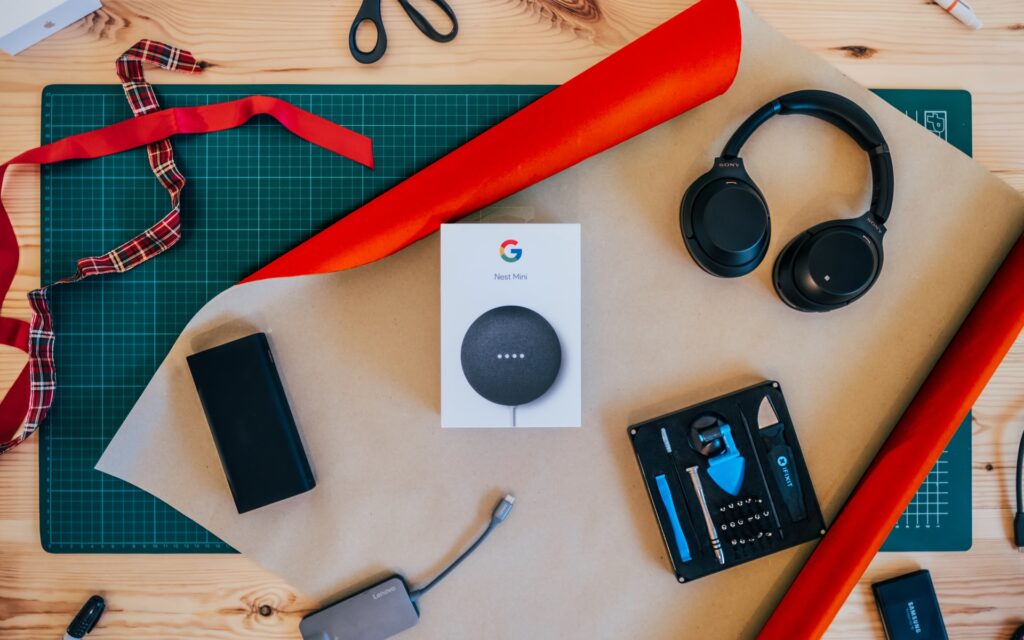
With Google Home and Nest speakers, you can’t directly turn off Google Assistant, but you can turn off the microphone so that it doesn’t listen to your voice.
Once the Google Assistant does not listen to your voice, it will not respond to you. Therefore, ensure to turn off the microphone button.
In the speakers of Google Home, the button is on the back side of the device. However, the microphone is next to the power cord in Google Home and Nest speakers’ mini version.
Conclusion
There is almost no situation Google Assistant cannot handle, and the technology is improving daily. In addition to scheduling tasks, playing music, controlling smart home devices, and answering weird questions, it also has many other functions.
You can search the internet using voice commands or keyboard input with the Assistant. It’s good to silence Google Assistant if you don’t need it. Doing so will help you enjoy your Android or Chrome OS device uninterrupted.


